
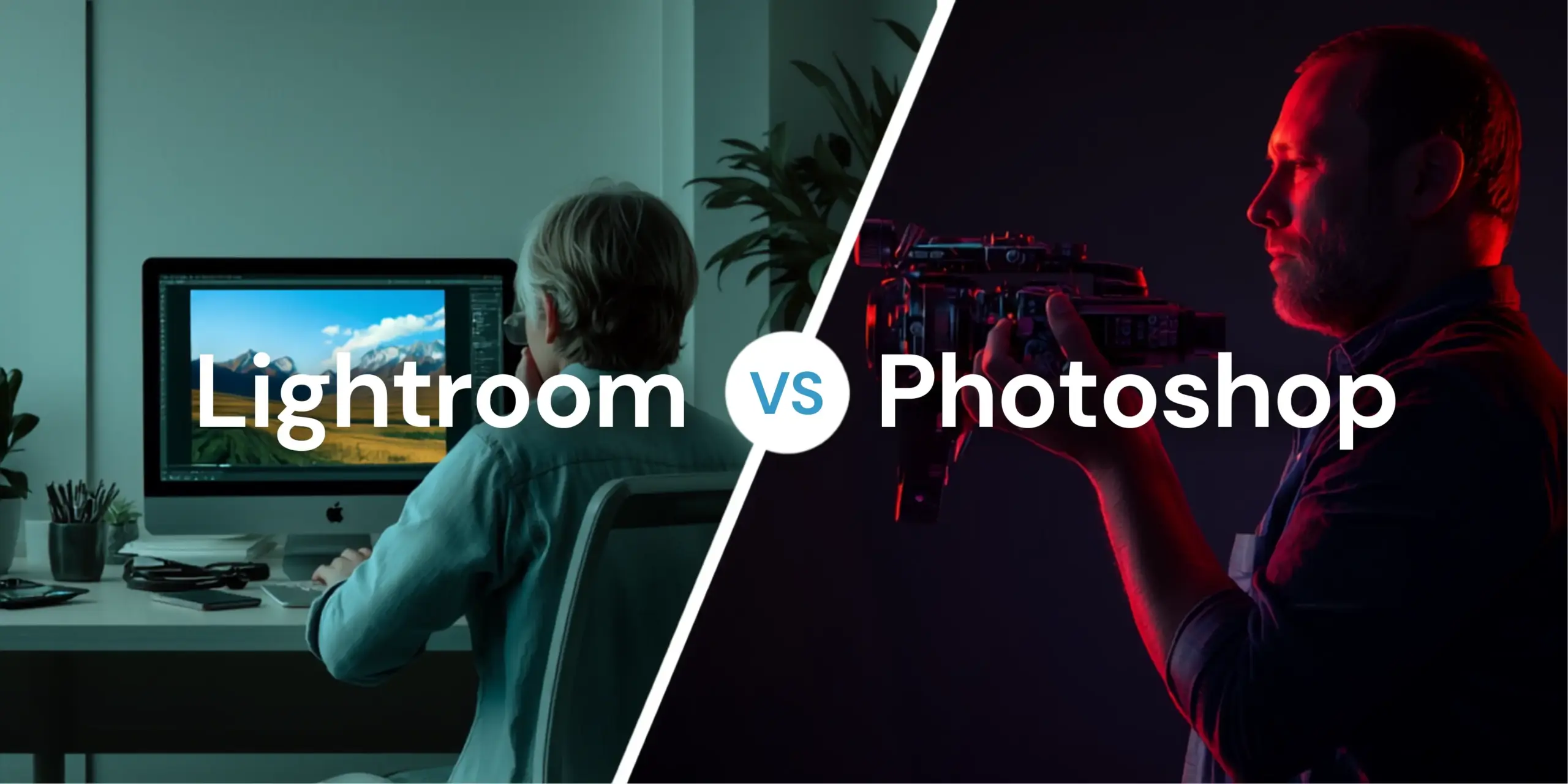
If you are just starting to shoot seriously or improving your post-production workflow, the Lightroom vs Photoshop question is certainly one of the first things you will run into. Both are products of Adobe. Open both Photos. Both allow you to modify color and exposure. So why are they different tools, and which one should you actually use?
The quick answer is that they are for different purposes, and knowing that difference will save you hours of uncertainty. Lightroom is for photographers who need to organize, process and export huge amounts of photographs efficiently. Photoshop is a pixel-by-pixel manipulation program used for retouching, compositing, and editing images in ways much beyond ordinary picture editing.
Every day, we work with RAW files and high-quality photographs, providing Lightroom-stage global corrections and Photoshop-level retouching for photographers and studios throughout the world at Photodotedit. That experience inspires everything in this guidebook. Whether you’re building your first editing gear or revisiting a workflow that’s beginning to drag, this breakdown will help you make the proper call.
The Fundamental Difference: Lightroom Is for Photographers, Photoshop Is for Compositors
The easiest approach to grasp the difference between Lightroom and Photoshop is to look at who each tool was built for.
Lightroom was made for photographers. Every feature, from its catalog system to its development module sliders, exists to support a photography-specific workflow. You import images, arrange them, make edits and export them. That’s the loop Lightroom is built to run, and it does so very well.
It wasn’t only for photographers. It is aimed toward graphic designers, illustrators, animators, architects and digital artists. Photographers utilize it, but they are one of many audiences. This means that Photoshop’s interface and toolset are larger and more complicated, which is both its strength and its learning curve.
One way to think of it: Lightroom keeps you working in the reality of a shot. With Photoshop, you can modify, reconstruct and rethink it all.
Lightroom: Catalog Management, Batch Editing, and Non-Destructive Workflow
What Lightroom Does Best
Lightroom’s main strength is managing vast numbers of photographs without slowing down your workflow. Lightroom is designed to be your home base if you shoot weddings, portraits, landscapes, or any other high-volume genre.
Import images. When you import images into Lightroom, they are stored in a catalog, which is a database that stores every image and every adjustment you make, keywords you add, ratings you give, and collections you put them into. Search hundreds of photographs by camera model, date, ISO, aperture and dozens of other metadata elements. There is no such thing in Photoshop.
Non-Destructive Editing
One of the biggest things Lightroom offers is non-destructive editing. When you edit an image in Lightroom, the original file is never changed. All edits are recorded as instructions either in the catalog or as an XMP sidecar file next to the image. So you can always go back, undo, or start over without losing quality.
Photoshop is a combination of destructive and non-destructive editing, depending on how you use it. Default Lightroom is 100% non damaging by virtue of its architecture.
Lightroom Batch Editing
Lightroom batch editing is one of the biggest time-savers in any photographer’s toolset. You can shoot one image, use those settings on hundreds of others in the same session, and make specific edits to the whole batch in minutes. Presets allow you to immediately apply a uniform look to any number of photos.
This is not optional for photographers who produce 200 or 500 photographs from a single session. It is necessary. Doing the same work, picture by picture, in Photoshop would take several times longer.
What Lightroom Cannot Do?
Lightroom does not have layers. It can’t combine many photos into a composite. It lacks Content-Aware fill, complex masking tools for removing subjects or pixel-level cloning beyond basic spot healing. Most photos will never miss these tools. But when you need them, you need Photoshop.
Photoshop: Layer-Based Editing, Retouching, and Compositing
What Photoshop Does Best
As a photographer, Photoshop is your friend when the usual fixes just don’t cut it. Photoshop is where you go to take a bothersome object out of a scene, airbrush skin to a professional standard, mix two exposures together, or swap out a sky.
Photoshop’s layer structure is the heart of the program. You may layer changes, masks and image elements on top of each other, each of which can be edited individually. This creates complicated, precise, controllable modifications that Lightroom’s global sliders just aren’t meant to do.
Retouching Capabilities
Photoshop has the capabilities to professionally retouch portraits: frequency separation for skin texture, dodge and burn for light sculpting on a face, healing brush and clone stamp for blemish removal, and precise masking tools for isolating eyes, hair, and backdrops.
Lightroom doesn’t have any of those tools in the same way. Lightroom offers a simple “healing brush” for spot removal. This is pretty good for basic imperfections. But if you’re doing high-end retouching on portraits for commercial use, editorial spreads or large-scale printing, then you need Photoshop.
Compositing and Advanced Manipulation
Photoshop allows you to combine numerous photos into a single composite, use Content-Aware technology to fill or delete parts of an image, and mix exposures using layer masks. Graphic designers can overlay text and vector images over pictures. Photos can be used as raw material for completely new graphics for digital artists.
These features separate Photoshop from photography and place it in the realm of picture production. That’s its power—and why it’s got a steeper learning curve than Lightroom.
Non-Destructive Options in Photoshop
Photoshop does allow for non-destructive work if you know how to utilize it properly. Smart Objects save the original image data under transformations and filters. Adjustment layers allow you to make color and tonal modifications that can be changed or removed at any moment. The main distinction from Lightroom is that both techniques involve deliberate setup, whereas Lightroom is non-destructive by default.
Which Tasks Belong in Lightroom vs Photoshop
The Lightroom vs Photoshop difference in practical terms boils down to the type of edit you are doing.
Use Lightroom for:
- Importing and managing photo libraries
- Rating, flagging and categorizing photographs from a shoot 2.
- White balance, contrast & color tweaks, worldwide exposure
- Batch editing of large collections of pictures
- Adding and synchronizing presets
- Basic spot fix & lens correction
- Export pictures for Web, Print or Client Delivery
Use Photoshop to:
- Advanced Skin Retouching and Frequency Separation
- Dodge and Burn Portrait Refinement
- Removing large or complicated objects from a scene
- Sky replacement and compositing
- HDR or combined photos of numerous exposures
- Hair Retouching & Background Cleanup in Details
- Any edit that involves pixel-level manipulation using layers or masks
For the vast majority of photographs in a typical photographic workflow, Lightroom does it all. Photoshop is the professional you bring in for intricate specialized adjustments to individual photographs.
Lightroom Classic vs Lightroom CC: Which Should You Use
Adobe offers two versions of Lightroom, and the distinction is important when building up a workflow.
Lightroom Classic
The vast majority of professional photographers use the desktop edition of Lightroom Classic. It stores all of your photo library on your computer or external hard drives, and gives you full access to all of the organizational and editing features Lightroom has to offer. The catalog system is strong, the development module is feature-rich, and the tools for dealing with large libraries are mature and reliable.
Lightroom Classic is the perfect choice for high-volume shooting, working from a single computer, or when you demand the entire suite of Lightroom’s capabilities.
Lightroom CC
Lightroom CC is Adobe’s cloud-enabled Lightroom for photographers using multiple devices. Images are stored in the cloud (Adobe’s), not on your device, and the interface is optimized for use on tablets and phones as well as computers.
The trade-off is fewer features. Lightroom CC lacks some of the more advanced organizational and editing options that Lightroom Classic offers. It is great for photographers who prefer flexibility and accessibility to an abundance of features.
Most serious photographers will be better off starting with Lightroom Classic. Lightroom CC is a terrific companion for mobile editing or quick reviews on the go.
When to Use Both Together in a Workflow
The most professional photography workflow doesn’t have to choose between Lightroom and Photoshop; it uses them together. The two programs are meant to work together, and the handoff from one to the other is easy.
The order is generally:
- Import & Organize in Lightroom. Import all photographs from a shoot into Lightroom, rate them and select the best.
- Global adjustments in Lightroom. Adjust exposure, white balance, color, contrast, and tone to your selects. Batch edit to apply settings to several photographs taken under identical lighting conditions.
- Export to Photoshop for the details. If you require more complex retouching, compositing, or pixel-level fixes, right-click in Lightroom and choose Edit In Photoshop. The file opens straight away.
- Save to Lightroom from Photoshop. When you save the repaired file back in Photoshop, it’s automatically there again in your Lightroom catalog with the original, so your structured library is all still intact.
This method makes sure your library stays organized and your batch adjustments are quick, while providing you with the powerful tools of Photoshop when a certain image requires them.
Capture One as an Alternative to Lightroom
This post is on the Lightroom vs Photoshop difference, although it is worth mentioning that Capture One is a serious alternative to Lightroom for the catalog and editing side of a workflow.
Capture One is a professional RAW image editing software and photo editing software used by business and fashion photographers. Many photographers say its color science is better than Lightroom’s, particularly with skin tones, and its tethered shooting capabilities are regarded as industry-leading.
Its organizing tools are similar to Lightroom Classic, and it has layer-based local changes that go a bit further than what Lightroom does, but it still doesn’t replace Photoshop for retouching and compositing.
Capture One is more expensive than Adobe’s Photography Plan and has a steeper initial learning curve. Lightroom is the more user-friendly and affordable entry point for photographers who are just building their workflow. But when you need more particular requirements in terms of color rendering and professional studio integration, then you have to go with Capture One.
Learning Curve Comparison
If you’re a photographer new to post-production, the learning curve between Lightroom and Photoshop is significant.
Learning Lightroom
The interface of Lightroom is based on a photography workflow. The module structure, Library, Develop, Export, mirrors the logical order of steps that a photographer performs with his or her photos. The sliders and controls in the Develop module work as they should and make sense. Most photographers may get up to speed in Lightroom in a few of days or weeks of consistent use.
The batch editing and categorization tools will take a bit more practice to grasp, but even at a novice level, Lightroom provides great value rapidly.
Learning Photoshop
Photoshop has a much steeper learning curve. Its tools are not structured around a photography workflow. It takes time and experience to understand masks, blending modes, adjustment layers and selection tools. Advanced techniques like frequency separation and dodge and burn need both technical knowledge and practical expertise to be done successfully.
Most photographers who use both applications recommend starting with Lightroom, and then adding Photoshop as specific needs arise, instead of trying to master both tools from scratch at the same time.
Cost Comparison: Creative Cloud Plans
Both Lightroom and Photoshop are part of Adobe’s Creative Cloud subscription model. Adobe does not sell them as perpetual standalone licenses.
The Photography Plan
Adobe’s Photography Plan bundles Lightroom Classic, Lightroom CC and Photoshop together. This is the most sensible choice for photographers who want access to all three tools. The plan is accessible at around $19.99 per month, and this is how most photographers access these services.
If you’re planning on using both programs, you might as well just get the Photography Plan, as there’s no price advantage to buying Lightroom or Photoshop individually.
Lightroom-Only Plan
Adobe also offers a Lightroom-only plan with cloud storage, but you get Lightroom CC, not Lightroom Classic. If you’re a photographer who needs the full capabilities of Lightroom Classic, you should know this plan is not a replacement for the Photography Plan.
Total Cost Consideration
Adobe’s Photography Plan is a large continuous investment, at roughly $240 per year. It’s worth the expense for photographers who are constructing a professional workflow around the combination of tools it offers. Free choices like Darktable exist for the amateur, but they lack the elegance and integrations of Adobe’s products.
Outsourcing Your Lightroom and Photoshop Editing
While you can be proficient at both technologies, there comes a moment when your photography business starts to scale, where it’s not economically viable for you to handle your own editing.
If you’re shooting 30-50 portraits a week and each image takes 15-30 minutes of intermediate retouching, you’re spending 7-25 hours a week in post-production. That’s time lost to shooting, communicating with clients, marketing and all other things that help a photography business flourish.
That is exactly where Photodotedit makes a difference. Photodotedit is for photographers and studios that need Lightroom stage global corrections and Photoshop stage retouching. The team works with RAW high-resolution files to get natural-looking results, avoiding the over-smoothed plastic appearance of poor quality retouching.
Portrait Retouching starting at $1/image. Advanced retouching, including dodge and burn, hair repair, and precise skin refinement, is in the $2 to $6 per image range. First edit free, no strings attached for new clients. Photodotedit enables unlimited modifications till the result satisfies your style criteria.
It’s a simple process. Upload your files, choose how you want them, and receive retouched portraits within 24 hours. This strategy works for individual photographers with weekly sessions and studios with hundreds of shots per week.
Send RAW files: we handle Lightroom and Photoshop editing
There is no one answer to the Lightroom vs Photoshop dilemma, because they are not competing for the same function. Lightroom is used to organize and process pictures on a huge scale. Photoshop is a tool to edit and manipulate individual photographs at the pixel level. Together, they compose the typical professional editing pipeline used by photographers of all genres.
If you’re a beginner, focus your learning time on Lightroom initially. Organize your workflow, learn to work with RAW files, and develop your eye for exposure and color correction. When your work goes beyond what Lightroom can do, Photoshop will still be there.
If your workflow is already at the stage where editing is taking up hours you don’t have, Photodotedit is built for that very situation. Send us your RAWs and tell us what you want. The team performs the Lightroom adjustments and Photoshop retouching, giving consistent, natural-looking results within 24 hours. Your first edit is free. Unlimited revisions until you are happy with the product.
Try now for free or contact Photodotedit at [email protected].
FREQUENTLY ASKED QUESTIONS
FAQ: Lightroom vs Photoshop: Which Should Photographers Use for Editing?
What is the main difference between Lightroom and Photoshop for photographers?
Lightroom is built to manage, process and batch edit massive numbers of photographs in a completely non-destructive approach. Photoshop is designed for pixel-level retouching, compositing, and complex modification of single images. The majority of professional photographers utilize both products side by side. Lightroom does most of the work, and Photoshop is used for more complicated alterations on specific photographs.
Can Photoshop replace Lightroom?
The Camera Raw panel in Photoshop duplicates most of the tonal and color adjustment features of Lightroom. But Photoshop has no catalog, no organizational system, no batch editing workflow like Lightroom’s, and no built-in means to manage enormous archives of photos. Lightroom is not a realistic substitute for Photoshop for photographers without a substantial loss in efficiency.
Should a beginner learn Lightroom or Photoshop first?
Start with Lightroom. Designed exclusively for photographers, easier to understand, enough for the great majority of editing tasks. When you feel comfortable in Lightroom and begin to run into things it can’t do (complicated retouching or compositing, for example), that’s the time to begin learning Photoshop.
Is Lightroom batch editing useful for all types of photography?
Batch editing in Lightroom is especially useful if you shoot a lot of photos, such as in wedding, portrait, event or commercial photography. Synchronize exposure, color, and tone corrections across hundreds of shots in one go, and apply presets consistently across a whole shoot. Batch editing can even be useful for landscape and wildlife photographers who shoot RAW files in similar lighting situations.
What does photoshop for photographers offer that Lightroom does not?
Photoshop offers photographers layers, layer masks, frequency separation, dodge and burn on a separate grey layer, Content-Aware fill and removal, sky replacement, compositing from several exposures, and powerful selection tools for hair and intricate edges. These features are beyond the scope of Lightroom and are essential for high-end portrait retouching, editorial work and creative picture alteration.
How much does Adobe’s Photography Plan cost?
Adobe’s Photography Plan, which includes Lightroom Classic, Lightroom CC, and Photoshop, is roughly $19.99 per month or $240 per year. Adobe doesn’t offer a stand-alone, permanent license for these apps.
When does outsourcing Lightroom and Photoshop editing make sense?
When your editing backlog is increasing faster than you can clear it, when you spend more time in post production than in front of the camera, or when the cost per image of a professional editing service is less than what your hourly rate would cost you to do it yourself, outsourcing is a good idea. Professional retouching begins at $1 per image with a free first edit and unlimited revisions with services like Photodotedit.