
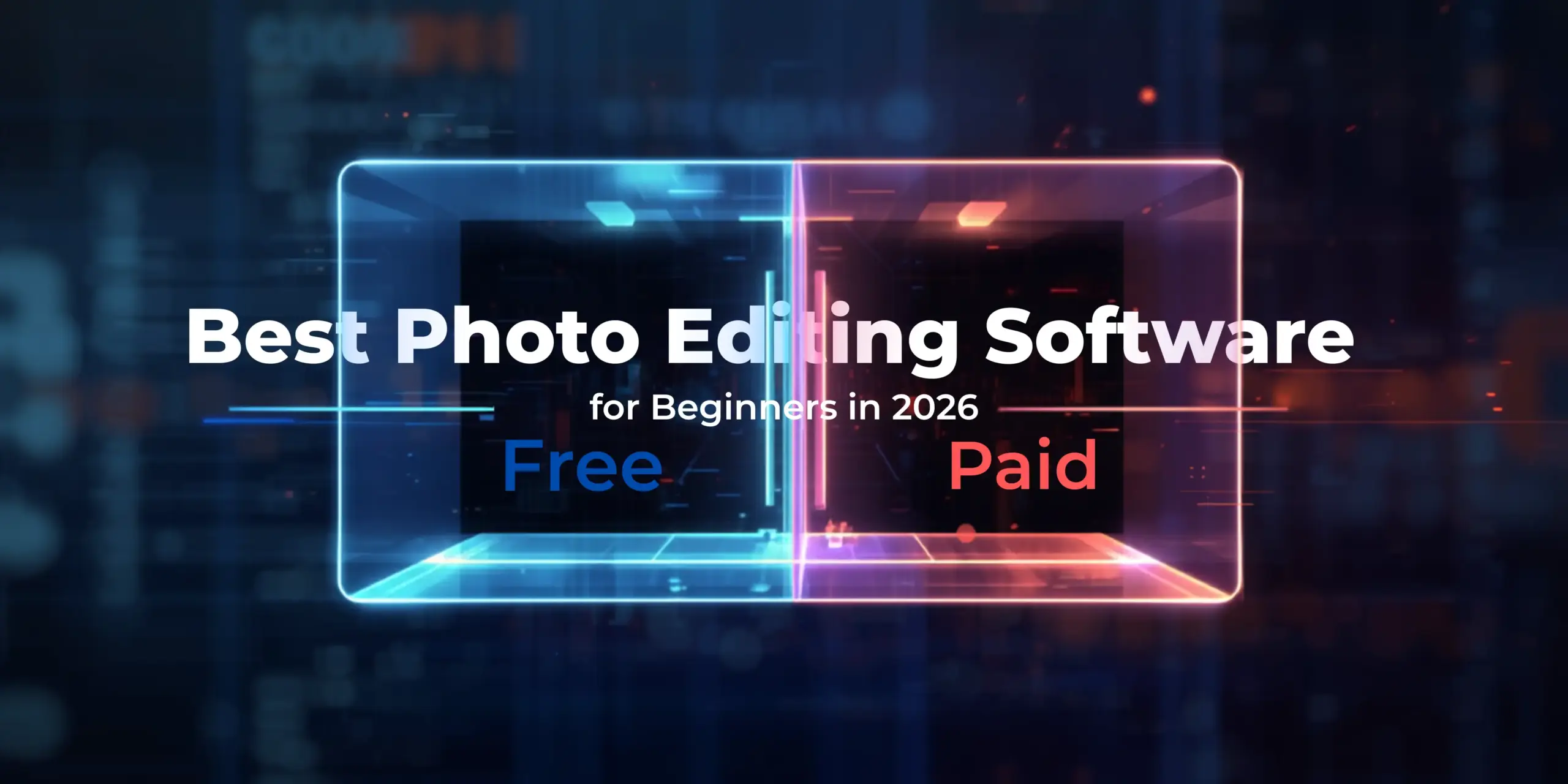
If you’re new to photography, one of the first significant decisions you’ll make is to choose the correct editing software. There are alternatives galore, price tags that range from the ridiculous to the sublime and specifications that can steal your breath away even before you’ve taken your first RAW file into post-production.
In fact, the best picture editing software for beginners in 2026 relies on what you’re aiming to accomplish, how much time you have to learn and if you want to invest money ahead of time or monthly. We’ll take a look at the most beginner-friendly solutions available right now, free and premium, so you can choose wisely without losing hours on software that isn’t compatible with your workflow.
And if you get to a point where the bottleneck is the editing itself instead of the program, that’s the moment when Photodotedit comes in. Professional portrait retouching is only $1 per image, with free sample edits and unlimited changes. It’s a practical option for photographers and small business owners who would rather spend their time shooting than sitting in Lightroom all day.
Free vs Paid Photo Editing Software: What Does the Difference Actually Mean
The first reflex of most newcomers is to go free. Makes sense. Why pay for software when you still don’t know what an aperture is?
But free vs. paid is not just a pricing issue. Each category gives you something different, and knowing those differences will spare you from switching tools 3 months in.
What Free Software Gives You
Free photo editing programs have really come a long way. There are powerful tools available for beginners, such as GIMP, Snapseed, and the free edition of Canva. Crop, color correct, erase defects, and add filters. Free tools are more than enough for those editing casual images or social media content.
The actual price of free software is time. Community forums replace official support. Workarounds substitute for built-in automation. And for desktop applications like GIMP, the learning curve is harder because the UI wasn’t meant for beginners.
What Paid Software Gives You
Paid software justifies its cost by providing reliability, support and workflow efficiency. Adobe Lightroom provides you with an organized editing environment, cloud sync, organized collections and regular updates. Luminar Neo provides AI tools that perform sophisticated edits in seconds rather than minutes.
If you’re creating a photography side hustle or want to get serious about your trade quickly, premium software shortens the distance between your vision and your product. Often, the time you save is worth more than the subscription fee.
The Bottom Line on Cost
A survey in 2026 showed that 45% of independent photographers now choose software with a one-time purchase over subscriptions, with long-term cost being a primary worry. If a monthly commitment is not for you, then Affinity Photo (one-time purchase) or Luminar Neo (perpetual license available) are worth a look. But for absolute beginners, it is a perfectly viable route to start for free and then upgrade when you hit a ceiling.
Adobe Lightroom: The Industry Standard for a Reason
Ask a working photographer what software they use daily, and the response will almost invariably be Adobe Lightroom. It’s not just popular, it’s the gold standard that everything else is compared to.
Why Lightroom Works for Beginners
Lightroom is for photographers, not graphic designers. Editing in Lightroom is simple, unlike Photoshop, which can do practically anything, but you need to know what you are doing. You slide sliders. You get results immediately. You learn what each modification accomplishes, without the confusion of layers and blend modes.
The UI divides your process into distinct stages: import, organize, develop, export. This framework is very helpful for beginners. It encourages you to conceive of editing as a process, not a collection of arbitrary tweaks.
Key Features for Beginners
On the Develop module of Lightroom, you get global adjustments (exposure, contrast, highlights, shadows, white balance) and local adjustments (masking, brushes, gradients) on a single structured panel. The AI-powered masking tools introduced in recent versions can automatically locate subjects and skies, which is a huge time saver while you are just learning.
The Denoise AI tool is very remarkable for beginners taking shots in low light. What took third-party plugins to do, now happens with one click, and with great results.
Lightroom also processes RAW files natively, and maintains your adjustments non-destructively, meaning your original file is never actually changed. This is helpful for beginners who wish to explore without the fear of destroying a photo for good.
Pricing and Availability
The Adobe Photography Plan, which includes Lightroom, Photoshop and 1TB of cloud storage, costs $19.99 a month. $11.99/month for a Lightroom-only package with 1TB storage. Both are subscription-based, and Adobe has a reputation for making it more difficult than it should be to cancel, so be sure to read the rules before you sign up.
Lightroom is the best way for a dedicated novice to go from good images to polished ones.
Snapseed: The Best Free Mobile Option
Not everyone edits on a desktop. If your phone is your main camera, or you just want to do short edits on the go, Snapseed is the greatest free tool out there in 2026.
What Makes Snapseed Stand Out
Snapseed is a free software from Google that’s accessible on iOS and Android. For something that costs nothing and fits in your pocket, it is incredibly powerful. The touch interface allows for a natural-feeling app on the phone that desktop software never quite gets right when moved to mobile.
The tool set is well beyond simple filters. It has Curves for fine-tuning tones, Selective adjustments for localized effects, Healing to remove distractions, and a full suite of portrait-specific features. For the smartphone shooter who wants professional-looking images without purchasing a laptop, this is the tool.
Learning Curve
Snapseed is easy to get started with, with everything designed around basic movements. Swipe up or down to browse tools, left or right to alter the intensity. Most beginners are comfortable within an hour of use. You can get some really impressive edits in a week.
The Stacks feature is really helpful as you move along. What it does allow you to do is go back and make individual tweaks after the fact, which provides you with a limited version of non-destructive editing on a mobile device.
Who Should Use Snapseed
Snapseed is a good choice for beginners shooting mainly on their phone, amateurs who like a quick edit without the need to learn complex software, and photographers who require a portable editing option on the go. It’s also a good backup option for those who use desktop applications but need to edit on the go every once in a while.
GIMP: The Free Desktop Alternative
GIMP, or GNU Image Manipulation Program, is the most capable free desktop photo editor available. It’s been around for decades, it’s open-source whole and through, and it costs nothing.
Is GIMP Actually Good for Beginners?
The honest answer is: GIMP is powerful, yet it is not the most beginner-friendly software on this list. The interface feels a little old, and the logic of the tools doesn’t always stand up to what someone coming from Lightroom or even Snapseed would expect.
That said, GIMP 3.0, published in early 2026, makes some huge improvements to the user experience. This upgrade was centred on workflow and general usability. It was more accessible than previous versions without significantly changing the UI.
What GIMP Does Well
GIMP’s layer-based editing, masking, blemish removal, color correction and photo alteration capabilities are close to those of premium software. It supports many file types and has a large community of developers who write plugins to add features.
If you are a novice and want to learn the basics of photo editing without having to pay anything, GIMP provides you with tools that will still be useful even if you upgrade to Photoshop. The basic ideas, layers, masks, curves, and selects are the same.
Where GIMP Falls Short
GIMP itself does not have a built-in RAW processor. You will need to use a different tool, such as RawTherapee, to process your RAW files before you bring them into GIMP. It lacks Lightroom’s organized workflow and doesn’t come with online sync or cataloging.
For shooters that shoot casually and edit JPEGs, this isn’t a big deal. It adds an extra step to the workflow for someone shooting RAW on a camera.
GIMP for Beginners: The Verdict
If you don’t have a budget and you’re doing desktop editing, GIMP is your guy. Add the free videos on YouTube, and it will take you a few weeks to learn how to get about the UI. Once you get past the first learning curve, you have a really powerful weapon at your disposal.
Luminar Neo: AI-Powered Editing Made Simple
Skylum’s Luminar Neo takes a radically different approach to photo editing. Instead of handing over control of every slider, it leverages AI to do the heavy job and lets you focus on the creative side.
Why Luminar Neo Works for Beginners
The main problem beginners have is knowing what to modify and in what order. This is substantially solved in Luminar Neo with one-click AI tools that evaluate your image and make clever edits. Sky replacement, backdrop removal, portrait improvement, noise reduction – things that would take a skilled editor 15 minutes may be done in seconds.
This doesn’t mean Luminar Neo is shallow. There’s a full complement of manual controls for those who desire it. But the AI tools are a huge step down in the barrier to entry, and that is exactly what beginners need.
Key AI Features
GenExpand is an AI-powered tool that extends the boundaries of your image. Relight AI takes the 3D shape of a shot and manipulates the lighting, something that previously would have required lengthy masking in Photoshop. Portrait editing tools automatically identify faces, smooth skin, brighten eyes, and eliminate shine.
If you’re a small business owner and you need some good product photos or headshots, but you don’t have the time to become a pro retoucher, Luminar Neo is a perfect pick.
Pricing
A major benefit that Luminar Neo has over Adobe is that it can be purchased once and for all. Perpetual desktop license costs £99, cross-device license costs £129, and max license costs £139. Also, there is a 30-day trial period, and if the program does not fulfill your needs, you can get your money back.
Luminar Neo is especially appealing to beginners who are apprehensive of recurring charges, as there is no monthly subscription.
Luminar Neo: The Verdict
Luminar Neo is one of the greatest choices in 2026 for beginners who want great outcomes fast and don’t mind letting AI do some of the thinking. It’s pretty powerful on portraits and landscapes.
Canva: For Non-Photographers and Marketers
Canva is not your normal photo editor. The good thing about Midjourney is that it was a visual design tool to begin with. But for one kind of user, notably small business owners and social media marketers, it can be exactly what you’re looking for.
What Canva Does
Photo editing features include basic editing (brightness, contrast, saturation and sharpness), background eraser, filters and text overlays. You can edit images immediately within a design project, meaning no need to switch apps. It’s the perfect tool to design social media posts, marketing materials, and presentation visuals.
Canva is certainly filling a huge gap with over 170M monthly users. The interface is simple enough that even non-photographers may create professional-looking content, no experience required.
Where Canva Falls Short for Photographers
Canva does not support RAW files. No curve tweaks or masking or anything layer-based. Anyone wanting actual control over their photos may find Canva limited within a few days.
It’s also worth mentioning that several of Canva’s more advanced functions, including background removal and other AI technologies, are locked behind the expensive Canva Pro plan.
Who Should Use Canva
Canva is the appropriate tool for small business owners who need to create marketing content quickly, social media managers who are working with already-processed photographs, and total beginners who are more interested in design than photography. Canva is a time-saving option if you want to make presentable Instagram posts or advertising material, rather than processing serious images.
Which Software Matches Which Skill Level
Choosing the correct tool also involves being honest about where you are at this point.
Complete Beginners
If you’ve never modified a photo before, try Snapseed (mobile) or Canva (design work). Both are free, both are intuitive, and both will teach you the basic logic of photo editing without overloading you. Once you know what sliders like exposure, contrast and saturation actually do, you’ll be ready to move on to more sophisticated software.
Developing Beginners
If you’ve been editing for a few months and want more control, this is the time to try Lightroom or Luminar Neo. Lightroom will teach you professional productivity practices. Luminar Neo will give you AI features that make your findings faster. Either of these is a big jump up from free mobile tools.
Budget-Conscious Beginners on Desktop
If you want professional-level desktop editing without spending any money, GIMP is your best bet. Remember that there is a learning curve; take advantage of free lessons, and you will learn abilities that will carry over to any other editing program you use in the future.
Hobbyists Turned Side Hustlers
If you’ve begun earning money from your photography, or you’re on the way there, it’s worth investing in Lightroom or Capture One. The workflow efficiency, RAW processing quality and professional output will make a difference in the work you hand to clients.
When Software Is Not the Bottleneck, Time Is
There’s something that most software guides won’t tell you. At some point, it’s not the editing software slowing you down. Time is.
A headshot shooter shooting 40 photos a week and doing moderate-level retouching can spend 2-5 hours on editing alone. That’s time away from shooting, promoting or creating relationships with clients. With your volume, that gap between shooting time and editing time is a serious challenge for your firm.
And this is precisely why Photodotedit was designed. Photodotedit is a professional picture retouching service that is used by photographers, studios and small business owners throughout the world. Basic portrait editing starts at $1 per image. Advanced retouching like dodge and burn, frequency separation, eye augmentation, hair refinement, and skin texture treatment costs between $2 and $6 each image.
The method is simple – upload your files using Photodotedit’s private site, define what you need, and get professionally edited images within 24 hours. Get a free first edit with every order and unlimited changes until the results match your style. The sample edit is a no-strings-attached deal, you give in your images and receive them back fixed and then you decide from there.
For photographers still learning, outsourcing your editing for a short time is also a terrific opportunity to understand the decisions of skilled retouching. Watch how a professional retoucher processes your photographs, and you’ll learn more than from any tutorial.
Whether you’re drowning in a backlog, gearing up for a busy season of events, or just want more time behind the camera, Photodotedit offers a reliable, cost-effective alternative to handling it all yourself.
Too busy to learn editing? Outsource to Photodotedit
The greatest picture editing software for beginners in 2026 isn’t one specific program. It’s the proper tool for you now.” When you’re ready to move on to Lightroom or Luminar Neo, start with free tools like Snapseed or GIMP, and if your primary purpose is designing, then go with Canva.
And when editing begins to take up more time than your firm can afford, realize that expert help doesn’t have to cost a fortune. Photodotedit prices start at $1/image. First edits free. Unlimited revisions. You may or may not find it useful today, but it is a good resource to be aware of.
FREQUENTLY ASKED QUESTIONS
FAQ: Best Photo Editing Software for Beginners in 2026: Free and Paid Compared
What is the best free photo editing software for beginners in 2026?
Snapseed is the best for mobile editing. It’s free, intuitive and surprisingly strong. GIMP is the best choice for free desktop editing, but it comes with a heavier learning curve. If you’re into design and social media content, Canva’s free plan is a realistic starting point.
Is Lightroom worth paying for as a beginner?
Yes, if you are passionate about photography as a beginner. Lightroom teaches you professional workflow practices, handles RAW files effectively, and has a good UI that evolves with you. The AI masking and Denoise tools are very helpful for novices. The Lightroom-only plan is $11.99 a month, a decent investment if you plan to edit regularly.
Is Luminar Neo better than Lightroom for beginners?
If you’re just getting started with photo editing, you may be wondering whether Luminar Neo or Lightroom is the better option. While both programs offer a range of features and tools to help you improve your photos, they have some key differences that might impact your experience.
Can GIMP replace Photoshop for beginners?
Yes, for most novice usage scenarios. GIMP can perform blemish removal, color correction, layer-based editing, and basic compositing. It doesn’t support CMYK color mode, and it lacks some of the more advanced AI capabilities that Photoshop has, but as a genuinely capable free option for learning the basics of photo editing, it’s hard to beat.
When should I outsource photo editing instead of doing it myself?
If your editing backlog is expanding, you are spending more time in postproduction than shooting, or if the per-image cost of a service like PhotoDotEdit is less than your effective hourly rate, it may be worth considering outsourcing. For big volume sessions such as weddings or headshot days, the time savings alone make professional editing services a good business decision.
Does Canva work for serious photo editing?
Not really. Canva is great for social media posts and marketing material, but it doesn’t have the RAW processing, curves editing and masking features real photo editing demands. Design work, use Canva. Anything that needs true post-production, use a specialist picture editor.